
Kaddora Internal Linking SEO Optimizer for WordPress: Documentation🎀
User Documentation:📜
Kaddora Internal Linking SEO Optimizer for WordPress helps website owners improve on page SEO by building a stronger internal linking structure from a single dashboard. It helps analyze content relationships, generate smart internal link suggestions, improve anchor text usage, review link opportunities, and monitor optimization progress with a clean and practical workflow.
Kaddora Internal Linking SEO Optimizer for WordPress : Documentation
1. Introduction
Kaddora Internal Linking SEO Optimizer for WordPress is a powerful plugin designed to improve your website structure by helping you create and manage internal links more efficiently. Internal linking is one of the most important parts of on page SEO because it helps search engines understand the relationship between your pages, improves crawling, distributes page authority, and makes navigation easier for visitors.
Managing internal links manually becomes difficult as a website grows. Blog posts, service pages, category pages, and landing pages often need stronger connections, but reviewing every article one by one takes time. This plugin reduces that workload by organizing internal linking tasks into a structured workflow that is easier to monitor from inside the WordPress admin panel.
The plugin focuses on practical optimization tasks such as reviewing content relationships, generating link suggestions, managing approval status, improving anchor usage, and monitoring how internal linking activity is developing across the site. This makes it suitable for bloggers, affiliate site owners, agencies, content publishers, business websites, and SEO professionals who want a cleaner and stronger internal linking system.
- Improve internal website structure for better SEO
- Generate smart internal linking opportunities between related content
- Review and manage pending, accepted, and rejected suggestions
- Support better anchor text planning and content flow
- Track internal linking progress from a centralized dashboard
Kaddora Internal Linking SEO Optimizer helps you build a stronger content network inside WordPress while reducing manual effort and making your site easier to optimize at scale.
2. Requirements & Compatibility
- WordPress Version: Requires WordPress 5.8 or higher and works with current WordPress releases.
- PHP Version: Minimum PHP 7.4, with PHP 8.0+ recommended for better performance and stability.
- Hosting Environment: Compatible with most shared, VPS, and cloud hosting environments. HTTPS support is recommended for a secure admin experience.
- Database: Compatible with MySQL 5.6+ or the MariaDB equivalent.
- Browser Support: Supports all major modern browsers including Chrome, Firefox, Edge, and Safari.
- Theme Compatibility: Works with most properly coded WordPress themes, including classic themes and Gutenberg compatible block themes.
- Plugin Compatibility: Designed to work smoothly with many common plugins including SEO plugins, caching plugins, page builders, and content management tools.
- Content Support: Can be used on posts, pages, and selected custom post types depending on plugin configuration.
- User Permissions: Administrator access is recommended for full configuration and management of optimization features.
- Multisite Support: Suitable for WordPress Multisite environments depending on installation and permission setup.
- Localization: Translation ready and suitable for multilingual WordPress setups.
3. Plugin Installation
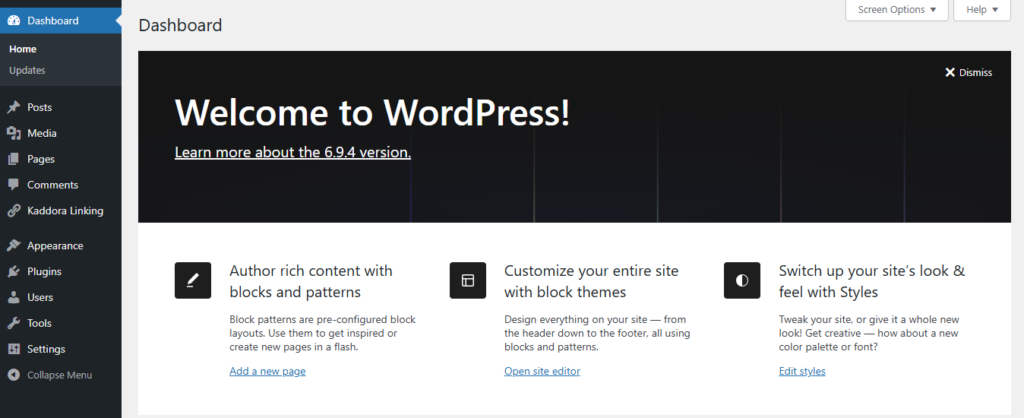
- Go to the WordPress Dashboard.
- Open Plugins → Add New.
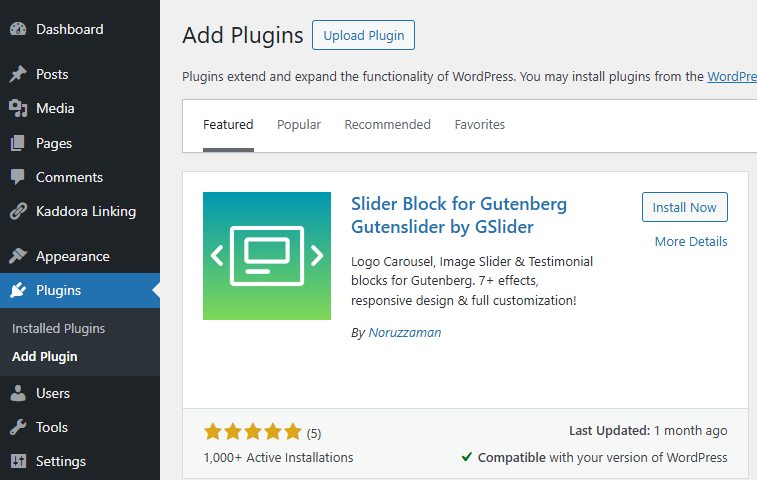
- Click Upload Plugin and choose the Kaddora Internal Linking SEO Optimizer plugin ZIP file, then click Install Now.

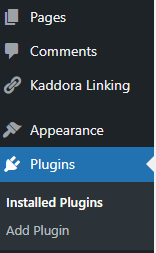
- After installation is complete, click Activate Plugin. Once activated, the plugin becomes available in your installed plugins list and its admin menu will appear in the WordPress dashboard.

- In the WordPress dashboard you will see the plugin menu for Kaddora Linking . Click it to access the dashboard, suggestions, reports, and settings.
4. Dashboard (Admin Panel)
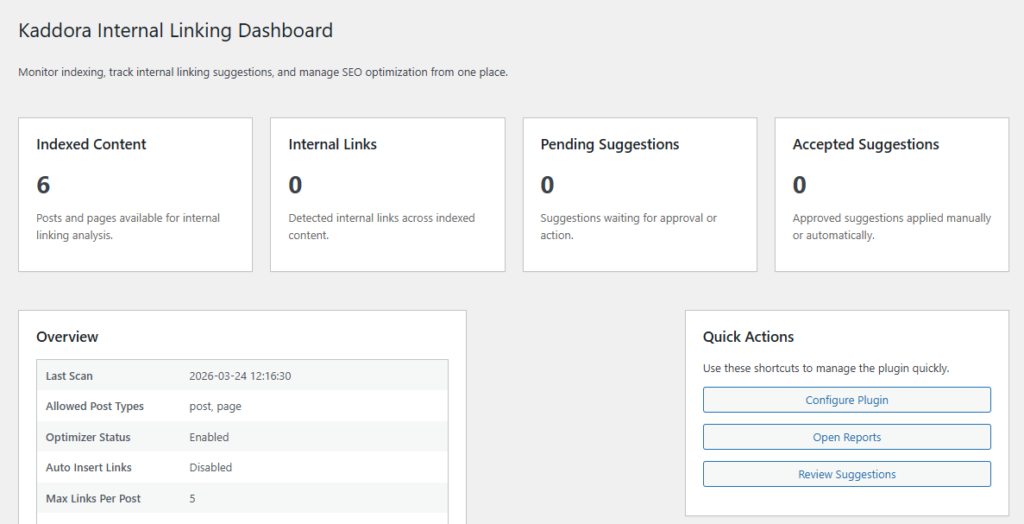
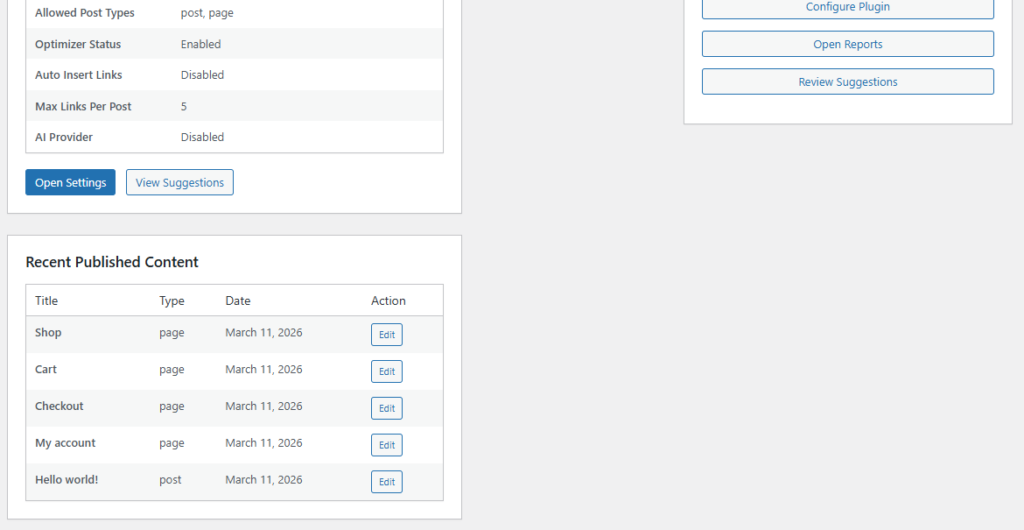
The Dashboard of Kaddora Internal Linking SEO Optimizer provides a centralized overview of your internal linking workflow. It is designed to help website owners quickly understand the current condition of their content structure without manually checking every post or page.
A strong dashboard saves time by bringing together the most important metrics in one place. From here you can review content indexing status, total internal links, pending suggestions, accepted suggestions, and direct access points to other sections such as settings, suggestions, and reports.
- View the number of indexed posts and pages available for internal linking analysis
- Monitor internal links detected across your content
- Track pending suggestions waiting for review
- Track accepted suggestions that have already been approved
- Access recent activity and quick navigation to related plugin sections
Key Dashboard Sections
- Overview Cards: Show a quick summary of major internal linking metrics
- Content Visibility: Helps you understand how much of your website is included in the optimization workflow
- Suggestion Status Summary: Makes it easy to see how many suggestions still need action
- Quick Actions: Provides faster access to review suggestions, open reports, or adjust settings
Benefits
- Centralized control for internal linking tasks
- Faster SEO workflow management from one screen
- Better visibility into optimization progress
- Easier planning for content updates and link reviews
The dashboard is especially useful for larger websites because it helps reduce manual work and gives you a clear starting point before moving into detailed suggestion review.
5. Link Suggestions
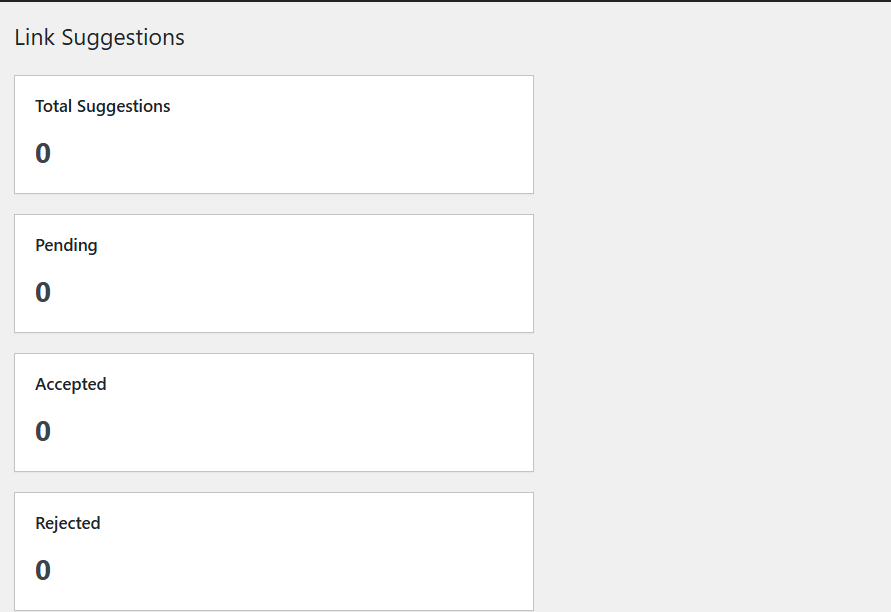
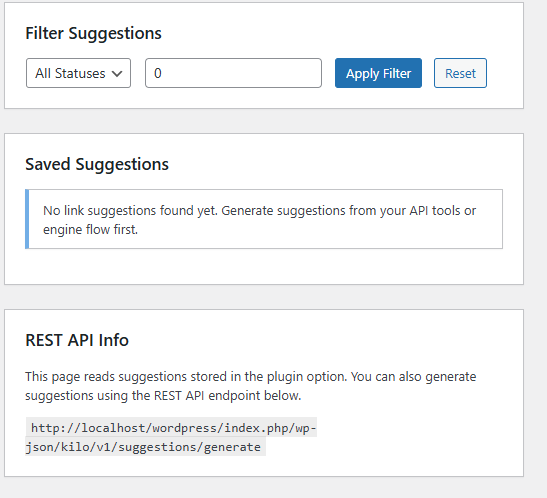
The Link Suggestions module is one of the most important parts of Kaddora Internal Linking SEO Optimizer. It helps you review possible internal linking opportunities between related pieces of content and decide which ones should be approved, rejected, or left pending for future review.
Instead of manually opening every article and searching for potential internal links, this section helps organize opportunities in a structured way. It can show the relationship between source content, target content, suggested anchors, and the current status of each recommendation.
- Review internal link opportunities in one organized interface
- Approve suggestions that are useful and contextually relevant
- Reject weak or irrelevant suggestions that do not fit your content strategy
- Use status based filtering to manage larger suggestion lists
- Improve anchor text consistency across your website
Key Features
- Source and Target Review: Helps you understand which content items are being connected
- Anchor Analysis: Makes it easier to review whether anchor text looks natural and helpful
- Status Workflow: Organizes suggestions into pending, accepted, and rejected groups
- Filtering and Search: Useful when working with a larger number of suggestions
Benefits
- Reduces manual internal link planning work
- Keeps editorial control in your hands
- Supports better SEO decisions through structured review
- Makes internal linking easier to manage as the website grows
This section is ideal for websites with many posts and pages because it turns internal linking into a manageable review process rather than a repetitive manual task.
6. Reports & Analytics
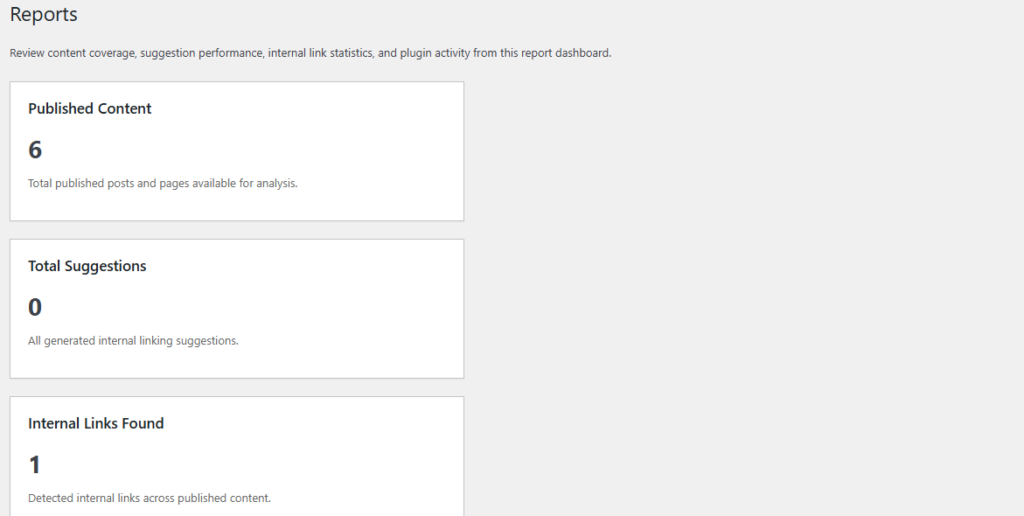
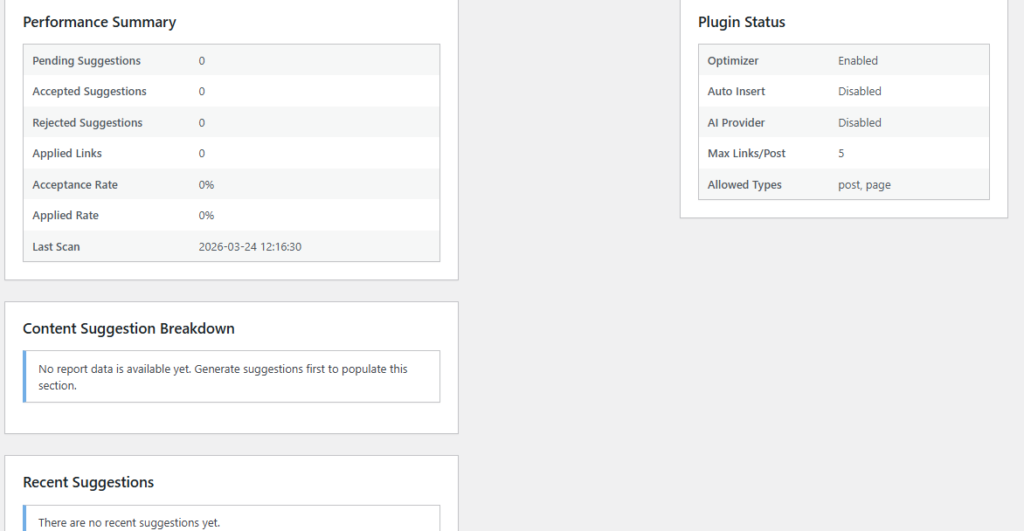
The Reports and Analytics section gives you a clearer understanding of how internal linking activity is progressing across your site. It helps turn optimization work into measurable insight by showing how many suggestions have been generated, approved, rejected, or left pending.
Reports are useful not only for website owners but also for agencies and SEO managers who need to monitor progress over time. Instead of relying only on manual observation, this section makes internal linking work easier to track and explain.
- Track total suggestions created by the optimization workflow
- Measure how many suggestions were accepted
- Review how many suggestions were rejected
- Monitor how many suggestions still need action
- Analyze internal linking progress across your site
Analytics Features
- Summary Reports: Show major internal linking metrics in one place
- Status Distribution: Helps you understand the balance between pending, accepted, and rejected items
- Progress Visibility: Gives a better picture of how much of the internal linking workflow has been completed
- Decision Support: Makes it easier to refine your strategy based on actual activity
Benefits
- Provides better visibility into SEO workflow progress
- Helps identify whether suggestion quality is improving
- Supports reporting for clients, teams, or internal review
- Turns internal linking work into trackable optimization data
This section is particularly valuable when you want to monitor ongoing optimization rather than treating internal linking as a one time task.
7. Plugin Settings
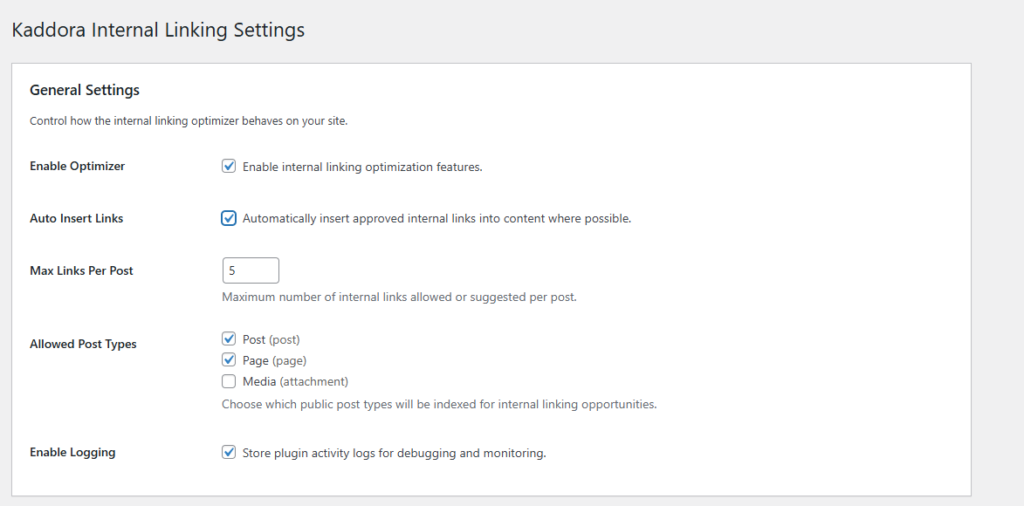
The Settings panel gives you control over how Kaddora Internal Linking SEO Optimizer works on your website. Different websites have different content goals, so the plugin includes settings that let you adjust behavior according to your structure, content types, and optimization preferences.
This section is important because it lets you decide how broad or controlled the optimization workflow should be. You can define which post types are included, whether automation should be conservative, and how many links are allowed within a piece of content.
- Enable or disable the optimizer
- Select post types for analysis and internal linking management
- Control how many links can be inserted or suggested per post
- Adjust optimization behavior to fit your content strategy
- Manage advanced settings for a more customized workflow
General Settings
- Enable Optimizer: Turn the main optimization workflow on or off
- Allowed Post Types: Choose whether posts, pages, or custom post types are included
- Maximum Links per Post: Prevent over optimization by limiting internal links
Content Control Settings
- Scope Selection: Decide where the internal linking workflow should apply
- Exclusions: Keep selected content areas outside the optimization process when needed
- Review Preferences: Support a more controlled approval based workflow
Benefits
- Lets you adapt the plugin to different SEO strategies
- Prevents excessive linking within content
- Keeps optimization cleaner and more manageable
- Improves flexibility for different types of WordPress websites
The Settings panel helps you balance automation, control, and content quality so your internal linking work stays aligned with your SEO goals.
8. Integrations (API & Services)
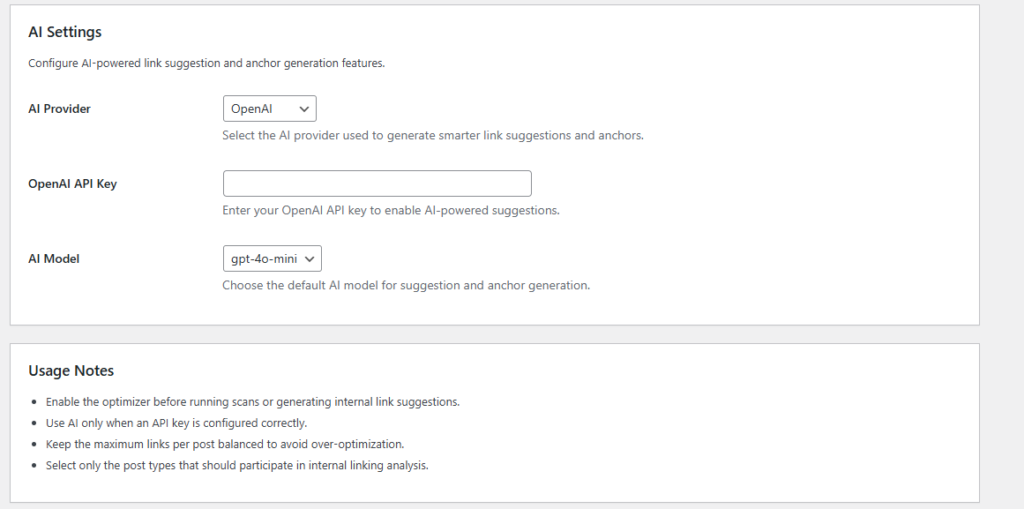
The Integrations section is designed to support extended functionality where the plugin may connect with APIs, services, or other systems used in your workflow. Depending on your plugin setup, integrations can help expand analysis options, support advanced suggestions, or improve communication with third party tools.
While many internal linking tasks can be handled directly inside WordPress, some websites may require more advanced features or connected services. This section provides a place for those external connections to be managed when available.
- Support integration with external services where needed
- Allow secure configuration of API related settings
- Extend plugin capabilities beyond the default WordPress workflow
- Provide room for advanced automation and connected features
Integration Possibilities
- API Configuration: Secure management of API keys and connection details
- External Services: Support for connected systems depending on plugin implementation
- Advanced Workflow Support: Useful for websites that need expanded optimization features
- Future Scalability: Makes the plugin more adaptable to growing requirements
Benefits
- Improves flexibility for advanced users
- Supports connected SEO or content workflows
- Allows expansion beyond the basic plugin setup
- Keeps advanced configuration organized in one place
This section makes the plugin more scalable and gives room for more advanced optimization workflows when needed.
9. Performance & Optimization
Performance is an important part of any SEO plugin. Kaddora Internal Linking SEO Optimizer is designed to support internal linking workflows without adding unnecessary complexity to the WordPress admin experience. The goal is to provide useful optimization features while keeping management practical and efficient.
For content heavy websites, internal linking tasks can become large over time. A structured workflow helps reduce this burden by keeping suggestions, reviews, and reports organized. The plugin is designed to support that process while remaining manageable for site owners and content teams.
- Helps organize internal linking tasks in a cleaner workflow
- Supports efficient review of content relationships
- Provides structured suggestion and reporting interfaces
- Reduces the time needed to manage larger content libraries
Optimization Benefits
- Workflow Efficiency: Makes internal linking tasks easier to process
- Cleaner SEO Management: Helps teams work more systematically
- Scalable Structure: Useful for both small and large content websites
- Controlled Linking: Supports a more balanced internal linking strategy
Best Practices
- Use sensible link limits per post
- Keep WordPress and PHP updated
- Review suggestion quality regularly
- Focus on relevant links instead of excessive link volume
A strong internal linking strategy should support both SEO and user experience. This plugin is designed to help you achieve that balance more efficiently.
10. Troubleshooting
If you experience issues while using Kaddora Internal Linking SEO Optimizer, the following suggestions can help you identify and resolve common problems.
Link suggestions are not appearing
Check whether the plugin is active and whether the optimizer is enabled in the settings. Confirm that the selected post types are included in the analysis process and that your site has enough relevant content for internal linking opportunities to be generated.
Dashboard numbers look incomplete
Review whether the correct post types are selected and whether content has already been included in the plugin workflow. Some metrics depend on available suggestions, accepted items, or processed content.
Reports do not show the expected values
Reports depend on the number of suggestions currently stored and their status. If there is very little review activity, the reports section may show limited data until more suggestions are processed.
The plugin seems to conflict with another theme or plugin
Temporarily disable other plugins and switch to a default WordPress theme to test compatibility. Then reactivate components one by one to identify where the conflict occurs.
Too many internal links are being suggested
Review your content settings and maximum link limits. A more controlled configuration can help prevent over optimization and keep the content experience cleaner.
If the issue continues, contact support with your WordPress version, plugin version, theme name, and a clear description of the problem.
11. FAQ
Below are answers to common questions about the plugin.
Who should use this plugin?
This plugin is useful for bloggers, niche site owners, affiliate marketers, agencies, publishers, service websites, and anyone who wants a stronger internal linking structure in WordPress.
Can I control which content types are included?
Yes. The settings allow you to select which post types are part of the internal linking workflow.
Does the plugin replace all manual SEO work?
No. It reduces manual effort and helps organize optimization work, but final review and content quality decisions should still be made carefully.
Can I use it on a large website?
Yes. The plugin is especially useful on larger content websites where manual internal linking becomes difficult to manage.
Will it help improve SEO?
A stronger internal linking structure can support better crawling, page relationships, and user navigation, all of which are useful for on page SEO improvement.
Do I need coding knowledge to use it?
No. The plugin is designed to be managed from the WordPress admin area and is suitable for non technical users as well.
12. Support & Updates
We are committed to providing support and ongoing improvements for Kaddora Internal Linking SEO Optimizer for WordPress.
Support
- Contact support for technical help and plugin related questions
- Include WordPress version, plugin version, and issue details for faster assistance
- Provide screenshots when possible to help identify the issue clearly
Updates
- Regular updates may include new features, improvements, and compatibility refinements
- Security and stability improvements will be included where needed
- Ongoing development helps keep the plugin aligned with current WordPress versions
Recommendations
- Keep the plugin updated to the latest version
- Back up your website before major updates
- Review update notes to understand changes and improvements
Your feedback helps improve the plugin over time. Keep your website optimized and continue building a stronger internal linking structure with Kaddora.