
Kaddora AI-powered API Security & Abuse Control Plugin 🎀
User Documentation:
AI-powered API protection, abuse control automations, and a scalable admin command center for WordPress.
📑 Table of Contents
1. Introduction 🎗️
Kaddora AI-powered API Security & Abuse Control Plugin helps protect WordPress API surfaces from abusive, suspicious, and high-risk traffic. It is designed to monitor REST API and AJAX requests, score request risk with AI-style analysis, apply automated actions, and give administrators a modern control center inside WordPress.
This first version focuses on:
- REST API and AJAX request monitoring
- Risk scoring based on request behavior and suspicious patterns
- Automated `allow`, `log`, `challenge`, and `block` decisions
- Incident logging for later review
- A structured admin experience for dashboard, endpoints, logs, automations, settings, and onboarding
The plugin is built with a scalable architecture so future releases can expand analytics, AI integrations, endpoint policies, automation rules, and alerting workflows without restructuring the whole product.
2. Requirements & Compatibility 📌
Kaddora currently targets the following environment:
| WordPress `6.4` or higher |
| PHP `7.4` or higher |
| A standard WordPress installation with plugin activation permissions |
| Administrator access for configuration and monitoring |
Compatibility notes:
| Works with WordPress REST API traffic |
| Works with WordPress AJAX requests |
| Designed for modern WordPress admin environments |
| Uses WordPress cron for scheduled cleanup tasks |
3. Plugin Installation 🦚
Method — Upload ZIP
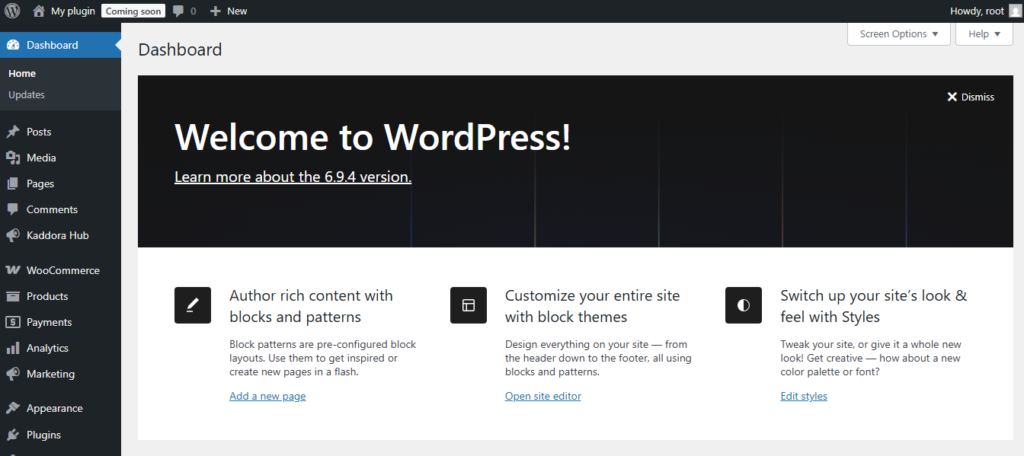
- Go to the WordPress Dashboard –
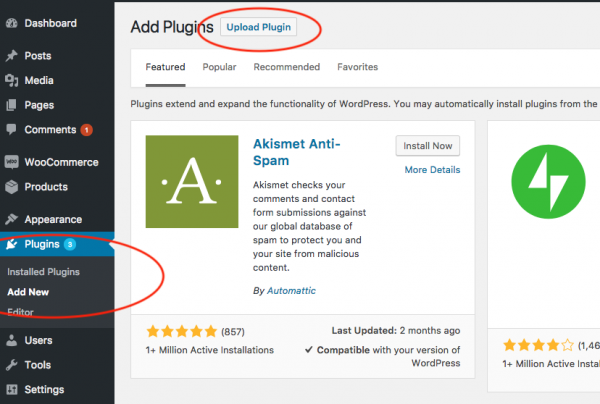
- Plugins → Add New →
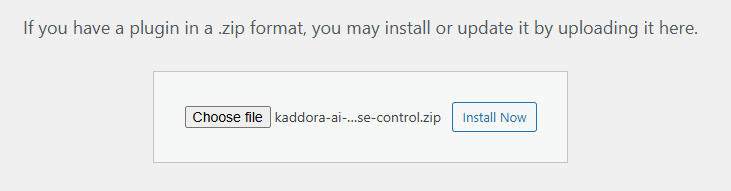
- Upload Plugin > Choose the kaddora-ai-powered-api-security-and-abuse-control.zip plugin file and click Install Now.
- After successfully Installation & Activation of plugin, you will see ‘Kaddora AI-powered API Security & Abuse Control Plugin’ in your installed plugin section, here you can check version and description about the plugin.

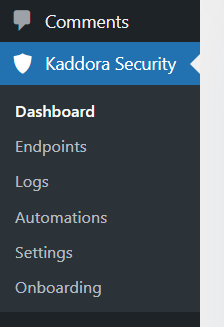
- In WordPress dashboard, you can see ‘Kaddora Security ’ option available, click on it and access the setting part of the Plugin-
4. Settings (Admin Panel) 🛠️
The Settings screen is the main place where administrators tune protection behavior. After activation, the following sections are available:
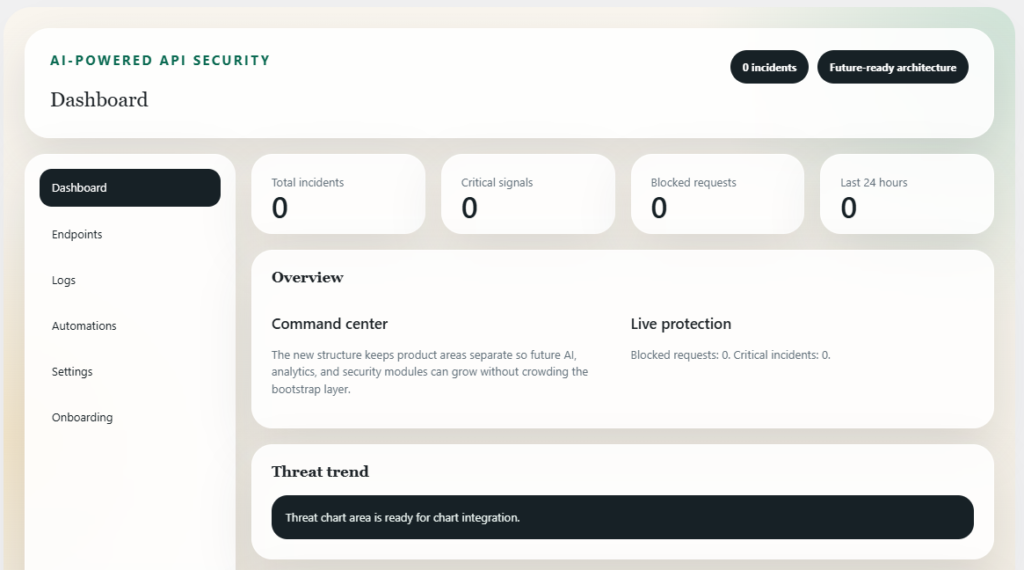
- Dashboard : Dashboard provide overview, Threat trend, Threat summary, and Recent events also.
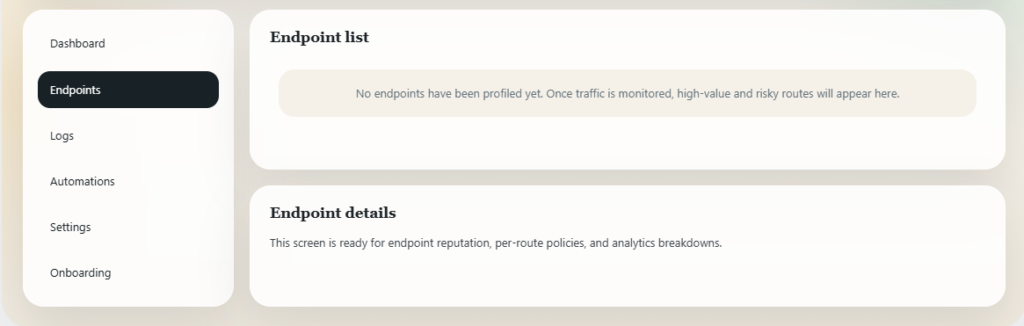
- Endpoints : Here is information about Endpoint list and Endpoint details.
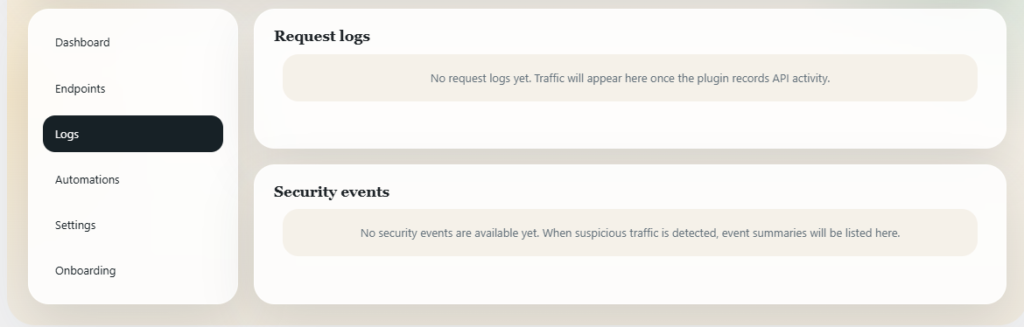
- Logs : Here you find Request logs and Security events information.
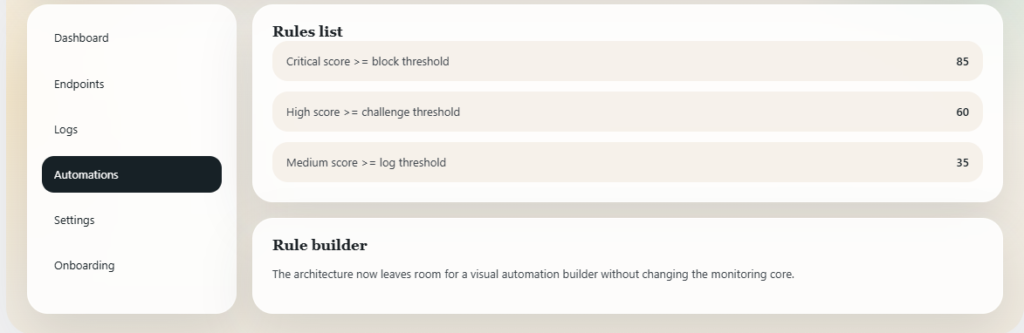
- Automations : Here is automations related information like Rules list and Rule builder.
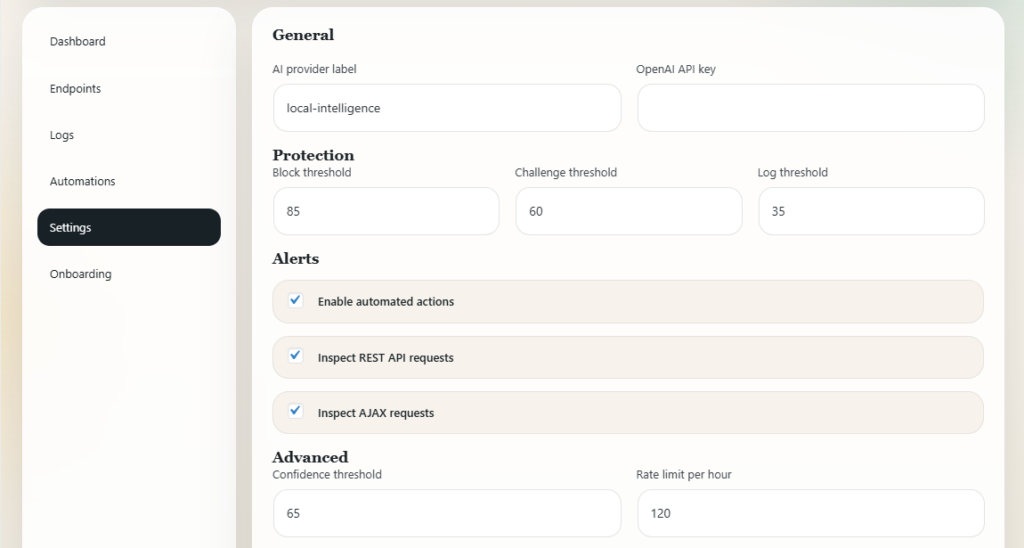
- Settings :
General : section contains AI provider label and OpenAI API key
Protection : controls core decision thresholds
Alerts : This section controls active protection coverage
Advanced : This section contains Confidence threshold, Rate limit per hour, Store payload samples\
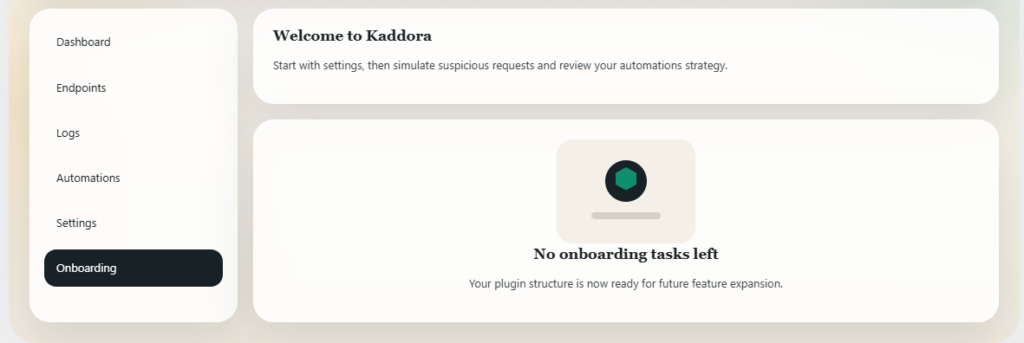
- Onboarding : Contains future versions features information and onboarding tasks with welcome messages.
5. How It Works (Workflow) 📶
Kaddora follows a layered workflow.
Step 1: Request Detection The plugin watches incoming: REST API requests and AJAX requests
Step 2: Risk Analysis The AI-style engine evaluates signals such as:
- Sensitive HTTP methods like PUT, PATCH, and DELETE
- Large payload sizes
- Missing user-agent headers
- Suspicious signatures such as SQL injection or script patterns
- Authentication-related endpoint targeting
- Unusual rate behavior from the same IP
- Time-based behavioral patterns
Step 3: Risk Scoring The plugin combines:
- Anomaly detection
- Behavior profiling
- Rate limiting analysis
- Recommendation generation
Step 4: Automated Action Depending on thresholds and settings, the plugin can:
- Allow the request
- Log the incident
- Challenge the request logically for future expansion
- Block the request
Step 5: Logging and Review Non-normal events can be saved as incidents and reviewed later in:
- Dashboard
- Logs
- Endpoints
Step 6: Maintenance The plugin uses WordPress cron to clean up older incident data automatically.
6. Customization Options 🪼
Kaddora is built to be extended and adjusted over time.
Built-in Customization – You can customize:
- Protection thresholds
- Rate limit behavior
- Whether REST and AJAX requests are inspected
- Whether automated actions are enabled
- Whether payload samples are retained
UI Structure – The plugin includes separate templates and assets for:
- Dashboard
- Endpoints
- Logs
- Automations
- Settings
7. Shortcodes Guide 🎯
The current version does not register public shortcodes.
8. Troubleshooting 🔱
Plugin Activates but No Incidents Appear
Check the following:
- REST or AJAX traffic is actually reaching the site
- Protection for REST/AJAX is enabled in settings
- Thresholds are not too strict or too loose for your tests
Activation Error or Fatal Error
Steps:
- 1. Enable WordPress debug logging
- 2. Check `wp-content/debug.log`
- 3. Confirm PHP and WordPress versions meet requirements
- 4. Verify plugin files were uploaded completely
Admin UI Looks Broken
- Refreshing the browser
- Clearing site and browser cache
- Deactivating conflicting admin-style plugins temporaril
9. FAQ 🌐
Does this plugin use real AI?
The current version uses an AI-style scoring engine built into the plugin. It is structured so external AI integrations can be added later.
Does it protect the WordPress REST API?
Yes. It can inspect and evaluate REST API requests when REST protection is enabled.
Does it protect AJAX requests?
Yes. It can inspect WordPress AJAX traffic when AJAX protection is enabled.
10. Support & Updates 🚒
For ongoing use, it is recommended to maintain:
- Regular plugin testing on staging
- Periodic threshold review
- WordPress and PHP updates
- Incident log review for tuning decisions
Future update areas may include:
- External AI-provider integration
- Better charts and analytics
- Endpoint-specific controls
- Stronger automation workflows
- Enhanced alerting and reporting
Thanks from Kaddora Tech ❤️