
Kaddora AI Omnichannel Campaign Generator WordPress Plugin 🎀
User Documentation:📜
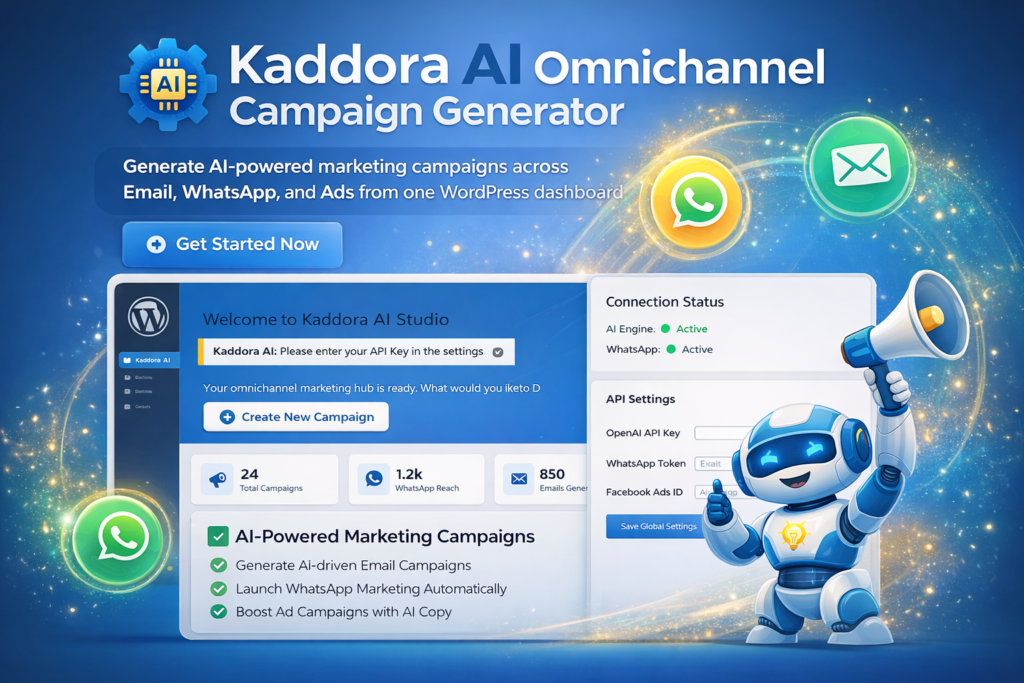
Generate AI-powered marketing campaigns across Email, WhatsApp, and Ads from one WordPress dashboard.
📑 Table of Contents
1. Introduction 🎗️
Kaddora AI is a powerful WordPress plugin designed for modern marketers. It leverages high-level Artificial Intelligence to transform a single marketing “strategy” or “prompt” into a coordinated campaign across three vital channels: Email, WhatsApp, and Social Media Ads.
- Primary Goal: Reduce campaign drafting time from hours to seconds.
- Target Audience: Agency owners, e-commerce managers, and software engineers.
2. Requirements & Compatibility 📌
| WordPress: 6.0 or higher. |
| PHP: 7.4 or higher (8.2 recommended). |
| Browser: Modern versions of Chrome, Firefox, or Safari (for the Studio UI). |
| API Key: A valid OpenAI API Key is required for the generation engine. |
3. Plugin Installation 🦚
Method — Upload ZIP
- Go to the WordPress Dashboard –
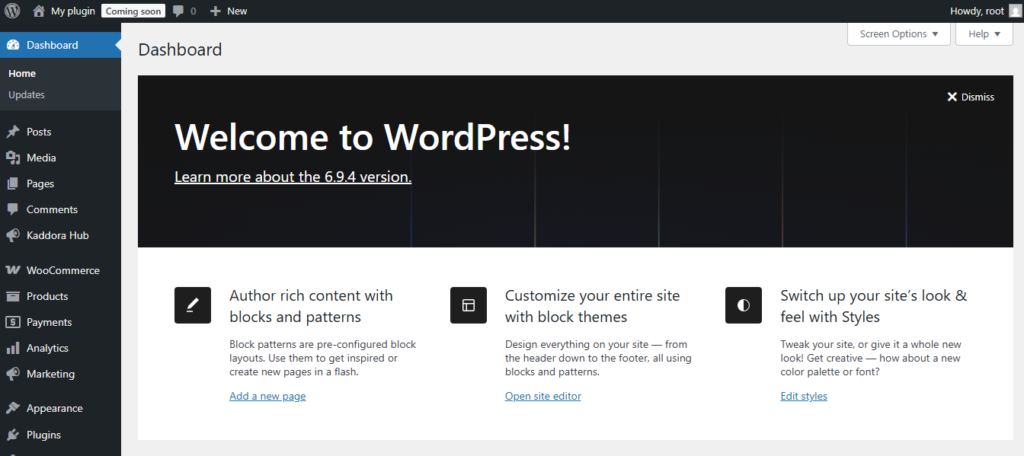
- Plugins → Add New →
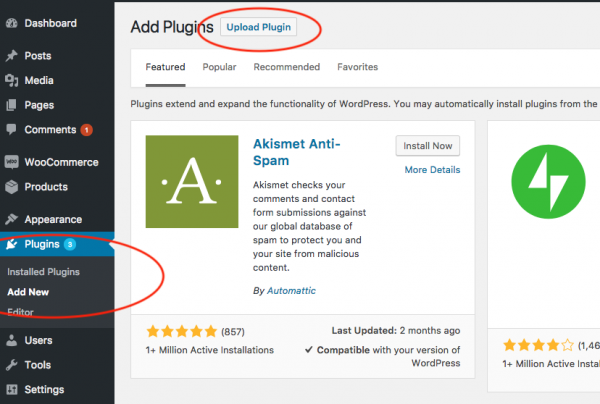
- Upload Plugin > Choose the kaddora-ai-omnichannel-campaign-generator.zip plugin file and click Install Now.
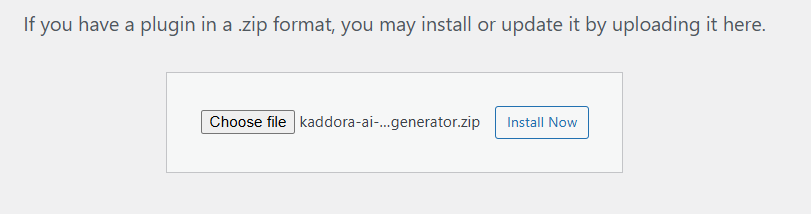
- After successfully Installation & Activation of plugin, you will see ‘Kaddora AI Omnichannel Campaign Generator’ in your installed plugin section, here you can check version and description about the plugin.

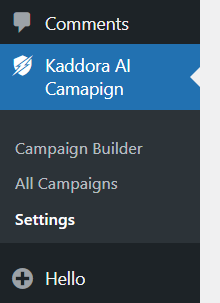
- In WordPress dashboard, you can see ‘Kaddora AI Campaign’ option available, click on it and access the setting part of the Plugin-
4. Settings (Admin Panel) 🛠️
Navigate to Kaddora AI Campaign > Settings to configure your credentials:
- AI API Configuration: Enter your OpenAI API Key. This enables the KAOCG_AI_Manager to communicate with the models.
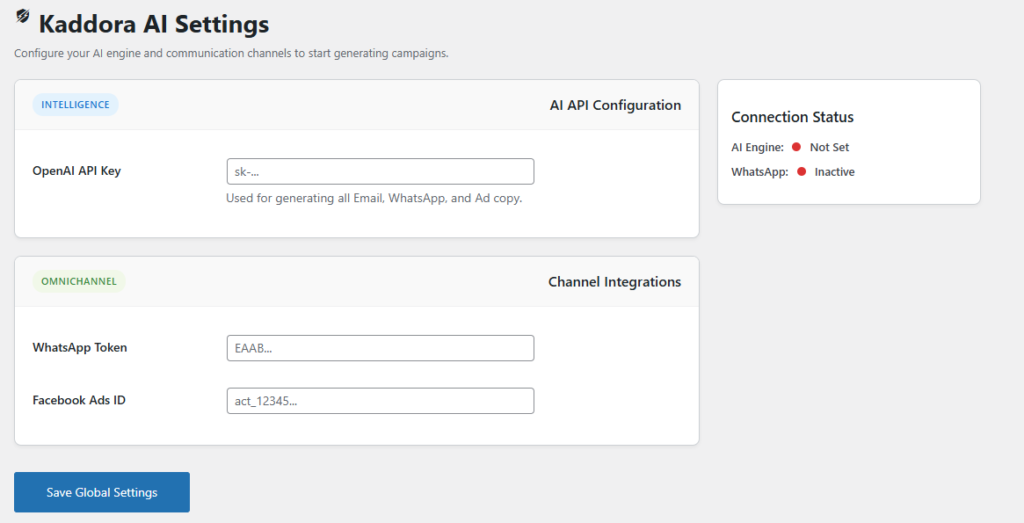
- WhatsApp Access Token: Required for Meta Business API integration.
- Facebook Ads ID: Connects your campaigns to specific ad accounts.
Note: Use the “Connection Status” sidebar to verify that your keys are active (Green dot).
5. The Campaign Builder (Studio) 📲
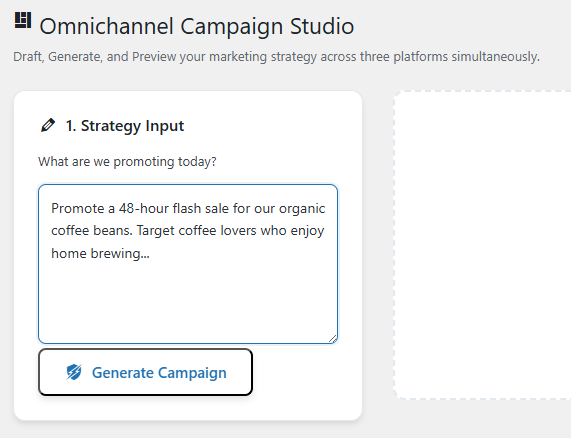
The Campaign Builder is a split-view workspace:
- Input (Left): Describe your goal (e.g., “Flash sale for winter boots”).
- Generation: Click “Generate Omnichannel Campaign.”
- Tabs (Right): Switch between Email, WhatsApp, and Ads to see live mockups.
- Save: Hit “Save to Campaigns” to store the data in your custom table.
6. How It Works (Workflow) 📶
- User Input: The prompt is cleaned via
KAOCG_Sanitizer. - AI Engine: The
KAOCG_AI_Promptsclass injects strict JSON formatting instructions. - API Call: Sent via AJAX to the OpenAI
gpt-4omodel. - Parsing: The response is validated to ensure it contains Email, WhatsApp, and Ads data.
- Output: Content is injected into the Studio UI for review.
7. Customization Options 🪼
- Templates: Developers can modify files in the
templates/folder to change the look of the generated previews. - CSS Styles: All UI components use the
kaocg-prefix inassets/css/kaocg-admin.cssfor easy overriding.
8. Shortcodes Guide 🎯
Version 1 does not include shortcodes. All functionality is available via: Plugin’s menu and Settings Panel, Future versions may include shortcode support.
9. Troubleshooting 🔱
Fatal Error on Activation:
Ensure KAOCG_PATH is defined correctly in your main plugin file.
AI Not Generating:
Check the Settings page for a red “Inactive” status dot.
Empty Dashboard:
Ensure you have clicked “Save to Campaigns” in the Builder to populate the table.
10. FAQ 🌐
Q: Is my data shared with other users?
A: No. All generated campaigns are stored locally in your wp_kaocg_campaigns table.
Q: Can I edit the AI content?
A: Yes, once generated, you can copy the text and edit it before sending or saving.
12. Support & Updates 🚒
For technical support or to report bugs, visit the Kaddora Tech portal.
Current Version: 1.0.0
Thanks from Kaddora Tech ❤️