
Kaddora GST Engine 🎀
User Documentation📜:
Kaddora GST Engine is a WooCommerce plugin for automated GST invoice generation and compliance. It calculates CGST, SGST, and IGST based on customer and store location. The plugin generates professional PDF invoices with HSN codes and GST details. It includes reports, GSTR-1 export, bulk invoice download, and credit note handling. Designed for Indian businesses, it simplifies GST management and reduces manual work.
📑 Table of Contents
1. Introduction 🎗️
Kaddora GST Engine is a powerful WooCommerce plugin designed to automate GST invoice generation and simplify tax compliance for Indian businesses. It eliminates manual work by automatically calculating GST, generating professional invoices, and providing detailed reports. Built with a modern interface and scalable architecture, it helps store owners manage GST efficiently while ensuring accuracy and compliance.
Key Features:
- Automatic GST invoice generation for WooCommerce orders
- Smart CGST, SGST, and IGST calculation based on location
- Professional PDF invoices with HSN/SAC and GST details
- Invoice download option for customers in My Account
- Admin invoice preview and management inside orders
- Monthly GST reports dashboard with sales and tax summary
- GSTR-1 export (CSV) for CA and compliance use
- Bulk invoice download (ZIP) for quick access
- Credit notes system for refund and GST adjustments
- Easy settings panel for GSTIN, state, and invoice configuration
2. Requirements & Compatibility ⚙️
- WordPress 5.8+, WooCommerce 5.0+, PHP 7.4+ required
- DOMPDF setup and file write permissions needed
- Compatible with most themes and latest WooCommerce
- Works with major payment gateways (COD, Razorpay, Stripe)
- Supports caching, multisite (basic), and HTTPS environments
3.Plugin Installation 📌
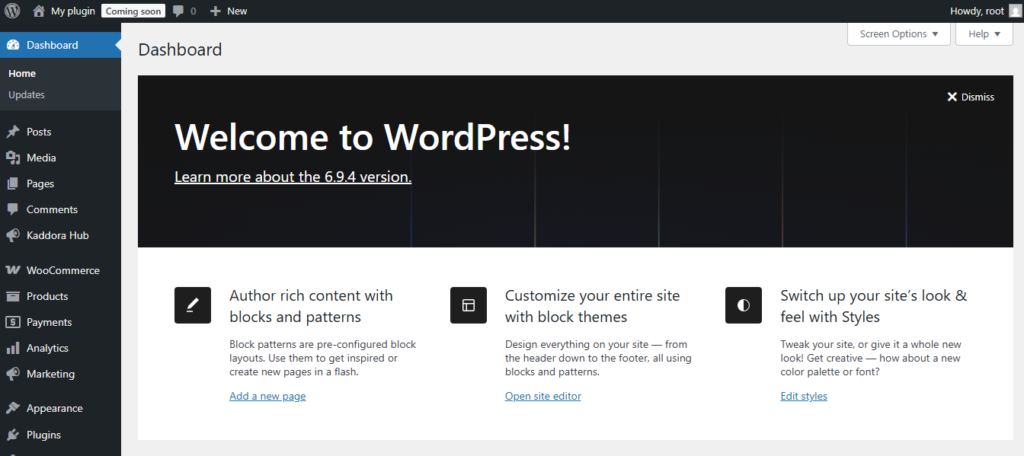
- Go to the WordPress Dashboard -:
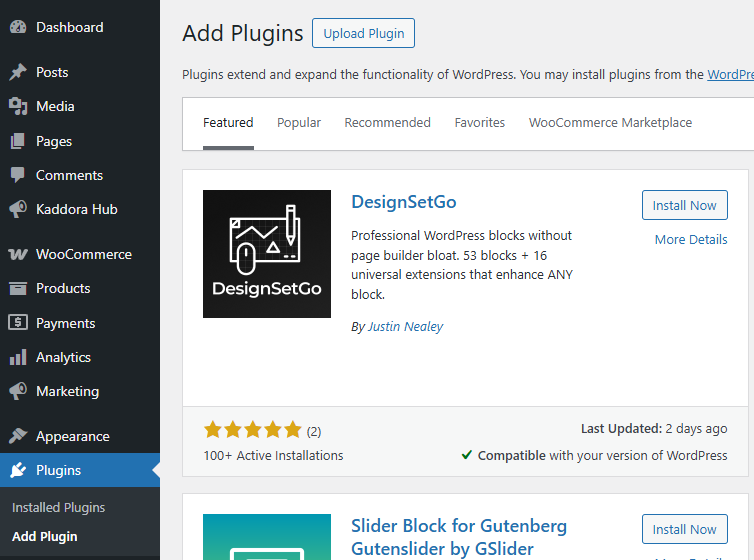
- Plugins → Add New →
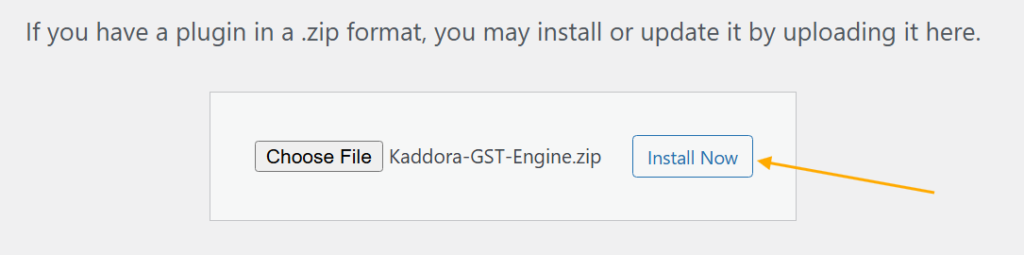
- Upload Plugin > Choose the Kaddora-GST-Engine plugin file and click Install Now.
- After successfully Installation & Activation of plugin, you will see ‘Kaddora GST Engine’ in your installed plugin section, here you can check version and description about the plugin.

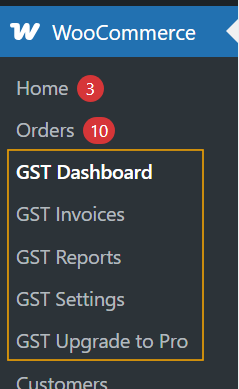
- In the WordPress dashboard, you will find the GST Engine option under WooCommerce. Click on it to access the plugin settings and manage return requests.
4. Dashboard 🛠️
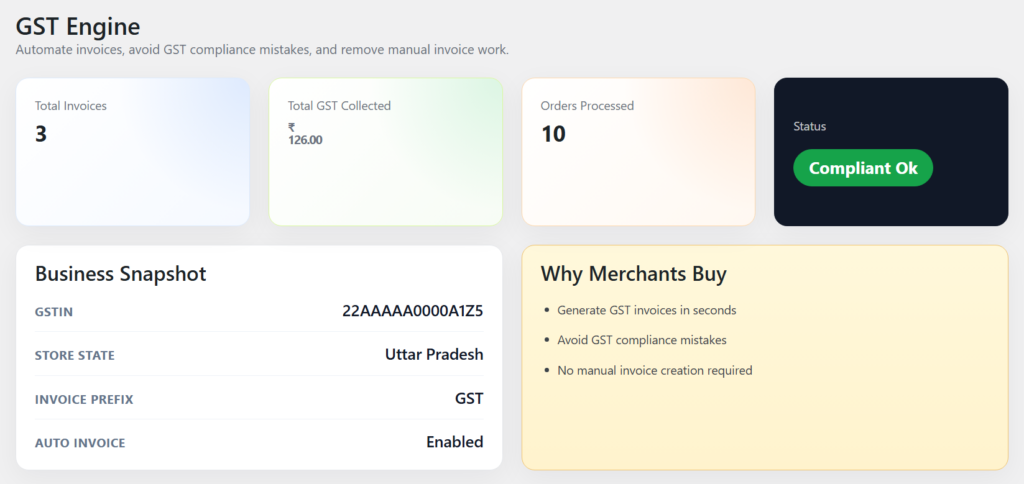
- Displays total invoices generated for quick tracking
- Shows total GST collected with real-time calculation
- Provides number of processed orders for business overview
- Highlights compliance status (e.g., Compliant OK)
- Includes business snapshot with GSTIN, state, invoice prefix, and auto-invoice status
5.Invoices
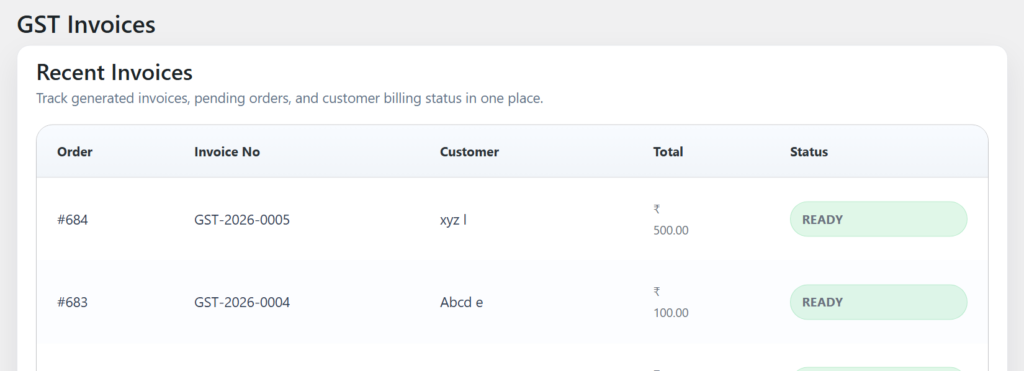
- Displays a list of all generated GST invoices with order details
- Shows invoice number, customer name, date, and total amount
- Allows quick download of invoice PDF files
- Provides invoice preview directly from the admin panel
- Includes filters/search to find invoices by date or order ID
6.Engine Settings ⚙️
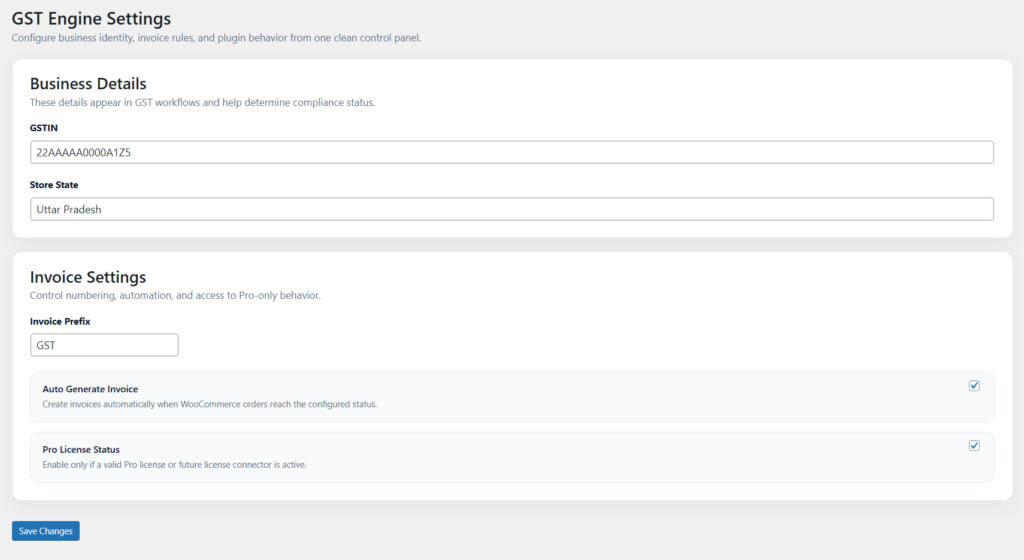
- Configure GSTIN and store state details
- Set custom invoice prefix and numbering format
- Enable or disable automatic invoice generation
- Manage GST-related preferences and defaults
- Control Pro features and plugin behavior settings
7. GST Reports
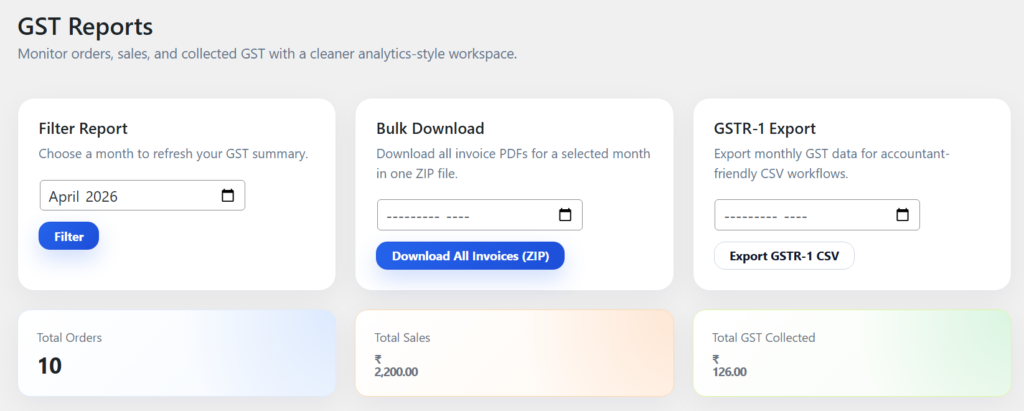
- Displays total sales, GST collected, and order count
- Provides monthly GST summary and business insights
- Allows filtering reports by date or month
- Export GSTR-1 reports in CSV format
- Supports bulk invoice download for selected periods
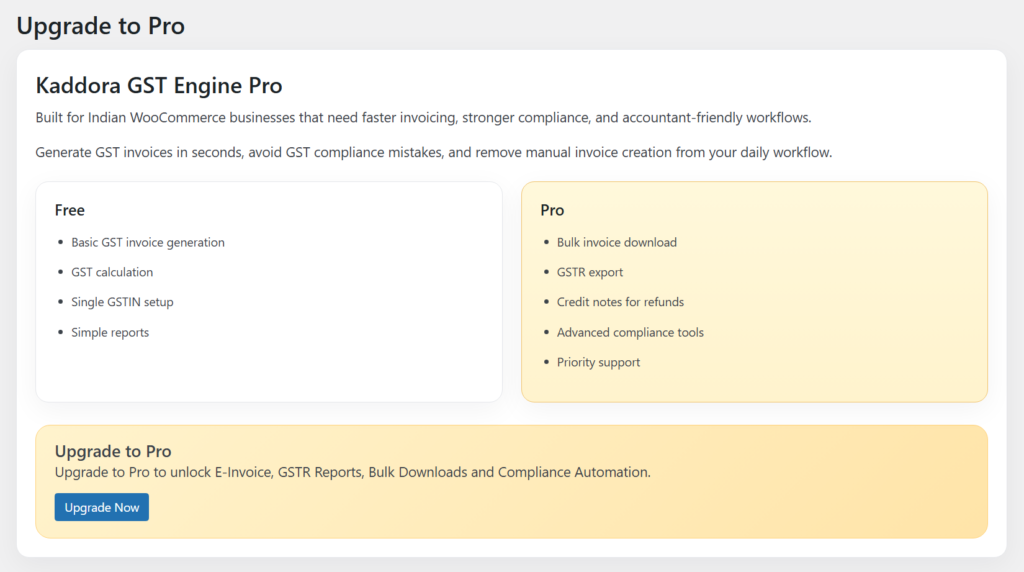
8. GST Engine Pro
9. Performance & Optimization ⚡
- Lightweight and optimized code for fast WooCommerce performance
- Efficient GST calculations with minimal database queries
- Uses cached data where possible to reduce load time
- Optimized PDF generation to avoid server overload
- Compatible with caching plugins for improved speed
10. Troubleshooting 🛠️
- Ensure WooCommerce is active and updated to the latest version
- Verify DOMPDF is installed correctly if invoices are not generating
- Check file permissions for invoice storage (uploads folder writable)
- Confirm order status is set to Processing/Completed for invoice generation
- Disable caching plugins temporarily if features are not working properly
11. FAQ ❓
- Q: Why is the invoice not generating?
A: Ensure the order status is Processing or Completed and GST settings are configured correctly. - Q: Why is PDF not working?
A: Check if DOMPDF is installed and the autoload file is properly included. - Q: How can I change GST rate for products?
A: Edit the product and update the GST Rate field in the product data section. - Q: Where are invoices stored?
A: Invoices are saved in the WordPress uploads folder and linked to each order.
12. Support & Updates 🛎️
- Dedicated support for setup, issues, and guidance
- Regular updates to ensure compatibility with latest WordPress and WooCommerce
- Continuous improvements based on user feedback
- Bug fixes and performance enhancements in updates
- Future feature additions including advanced GST compliance tools